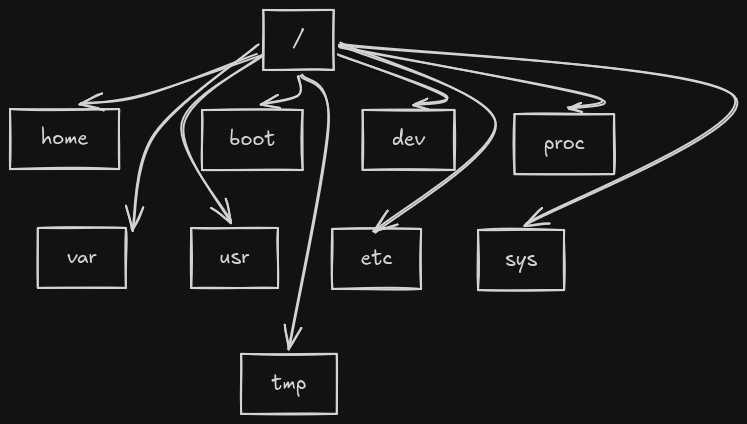
Chapter 1: Every Operating System Needs a Home for Data
Imagine walking into an empty apartment: the walls and doors are in place, but there are no shelves, cabinets, or rooms with assigned purposes. You could move your belongings inside, but organizing them, finding documents, or sharing the space would be chaotic. A brand-new storage device is very similar.
At its most fundamental level, a storage device (like an SSD or hard drive) is simply an enormous collection of addressable sectors capable of storing binary data—millions or billions of locations that each remember a 0 or a 1. From the perspective of the hardware, there is no such thing as a photograph, a text file, or a folder. There are only raw bits.
The concepts of files, directories, names, and permissions are entirely software abstractions created by the operating system. Before we can understand why Linux organizes its directories the way it does, we must understand the software layer that builds these abstractions: the filesystem.
A filesystem is a translation layer between human-readable organization and the hardware's raw blocks. When you save a document, the filesystem decides which physical sectors to write to, remembers where the data is stored, tracks file permissions, and links the sectors to a filename. Without a filesystem, your storage device is just an unorganized sea of binary data.
Chapter 2 — What Is a Filesystem, Really?
If a filesystem is a translation layer, how does it actually organize data? At its core, a filesystem consists of three primary components: file data, metadata, and an organizational directory structure.
File Data: This is the actual content you care about, such as the text in a document or the pixels in an image. The filesystem splits this data into fixed-size chunks (usually 4 KB blocks) and stores them across the physical storage blocks.
Metadata: This is the administrative data about the file. It includes the file's owner, access permissions (read, write, execute), creation/modification timestamps, size, and most importantly, the list of physical blocks containing the actual file data. In Linux filesystems like ext4, this metadata is stored in a structure called an inode (index node).
Directories: A directory is simply a special type of file. Instead of containing user data, it contains a list of filenames mapped to their respective inode numbers. When you open a file, Linux looks up the filename in the directory, retrieves its inode number, reads the metadata from that inode, and then locates the physical blocks containing the data.
Different filesystems (like FAT32, NTFS, ext4, or APFS) structure and manage this metadata differently to optimize for speed, safety, or scalability. Formatting a drive is the process of writing these initial metadata structures and directory trees onto the raw storage, preparing the foundation for future files.
Chapter 3: From Silicon to / — Understanding Storage, Partitions, and Mounting
Before a filesystem can be mounted, the raw physical storage device must go through a series of logical divisions. This process bridges the gap between raw silicon and the Linux filesystem tree.
First, the drive is divided into **partitions** using a partition table like GPT (GUID Partition Table). Partitions are logical boundaries that trick the operating system into treating a single physical disk as multiple independent disks. For example, a 1 TB SSD might be split into a 512 MB boot partition, a 100 GB root partition, and a 900 GB home partition.
Each partition is then formatted with its own filesystem (e.g., ext4, FAT32). At this stage, you have formatted filesystems, but applications still cannot access them. In Windows, each partition is assigned a drive letter (like C: or D:). Linux takes a different approach called mounting.
Mounting attaches a partition's filesystem to a specific directory in the single directory tree. The mount target is called a mount point. Once mounted, the partition's contents appear as a normal directory branch. For example, mounting a USB drive's partition to /media/usb seamlessly integrates its filesystem into the main tree: files written to /media/usb are physically saved to the USB drive, but applications access them using standard paths.
Raw SSD
   │
   ▼
Partition Table (GPT)
   │
   ▼
Partitions (e.g., Partition 1, Partition 2)
   │
   ▼
Filesystem Formatting (e.g., ext4, FAT32)
   │
   ▼
Mounting Point (Attached to a directory in /)
   │
   ▼
Single Unified Directory Tree (/)
Chapter 4: Why Everything Begins with /
Unlike Windows, which exposes physical storage boundaries using drive letters (like C:\, D:\, or E:\), Linux hides physical hardware layouts and presents all storage as a single, unified namespace starting at the root directory: /.
This design philosophy dates back to early Unix in the 1970s. Unix developers realized that requiring applications and users to know which physical disk or drive letter a file lived on made software brittle and configuration complex. If you moved a folder to a different disk, paths broke and configurations had to be rewritten.
By organizing everything under a single root directory (/), Linux abstracts the physical storage. To an application, a file path like /home/alice/notes.txt is just a logical path. The file might live on the primary SSD, a secondary hard drive, or a remote server across the network. The kernel handles the translation behind the scenes, making software highly portable and configuration clean.
Chapter 5 — Exploring the Linux Filesystem Hierarchy
Because Linux merges all files and devices into a single tree namespace, keeping the system organized requires strict conventions. This organization is defined by the **Filesystem Hierarchy Standard (FHS)**, which ensures consistency across different Linux distributions.
The FHS divides the directories branching from / into specific, functional roles:
/bin: Essential command binaries required for system recovery and single-user mode (e.g.,ls,cp)./sbin: Essential system binaries reserved for administrative tasks (e.g.,fdisk,iptables)./lib: Essential shared libraries needed by binaries in/binand/sbin./opt: Optional add-on application software packages (typically self-contained third-party software like Google Chrome or Zoom)./media: Mount points for removable media (like USB drives or optical discs) that are automatically mounted by the system./mnt: Mount points for temporarily mounted filesystems (typically mounted manually by administrators).
By following the FHS, developers know exactly where to install programs, and administrators know exactly where configurations, binaries, and system libraries belong on any Linux system.
Chapter 6 — /etc — The Brain of Your Linux System
If the kernel is the engine of Linux, /etc is the control panel. The name originally stood for "etcetera," but in modern Linux, it houses all system-wide configuration files.
A key characteristic of /etc is that almost all configuration files are **plain text**. Unlike Windows, which uses a complex, binary database (the Registry) for configurations, Linux configurations can be read and edited using simple text editors like nano or vim. This makes system administration transparent, scriptable, and easy to manage with version control tools like Git.
Common configuration files inside /etc include:
/etc/passwd: Contains user account information (usernames, IDs, home directories)./etc/hosts: A local static lookup table for mapping domain names to IP addresses./etc/fstab: Defines filesystems, partitions, and how they should be mounted during boot.
Configurations inside /etc apply system-wide, affecting all users. Individual user-specific overrides are stored in each user's own home directory.
Chapter 7 — /usr — The Most Misunderstood Directory in Linux
Newcomers often assume that /usr stands for "user" or "user profiles." In reality, it stands for **User System Resources** (historically, Unix System Resources), and it acts as the primary location for installed software and static, read-only data.
In early Unix, systems were split because primary disks were tiny. The operating system core lived in /, while user-installed software lived on a secondary, larger disk mounted at /usr. Today, this storage limitation is gone, but the distinction remains: /usr contains user-space programs, libraries, documentation, and assets that are shared across the system and do not change during normal operation.
Key subdirectories include:
/usr/bin: User command binaries (e.g.,python,git). Modern Linux distros often link/binto/usr/binto simplify paths./usr/lib: Libraries for the binaries inside/usr/bin./usr/local: A safe location for administrators to install software compiled manually from source code, ensuring it doesn't get overwritten by the system's package manager.
Chapter 8 — /var — Where Linux Lives Its Daily Life
While /usr contains static software that rarely changes, /var (short for variable) is dedicated to data that changes constantly as the system runs.
By separating static software (/usr) from dynamic data (/var), Linux allows systems to mount the core software as read-only. This improves security and makes system backups simpler: since the operating system software in /usr is identical across machines, administrators only need to back up variable configuration in /etc and dynamic data in /var.
Common types of variable data stored in /var include:
/var/log: System and application log files (essential for troubleshooting)./var/cache: Cache files generated by applications and package managers (e.g.,apt)./var/lib: Dynamic state information and databases (e.g., database storage files)./var/spool: Print queues and mail queues waiting to be processed.
Chapter 9 — /home — Every User Gets Their Own World
Because Linux is a multi-user operating system, it needs to isolate users from one another. This isolation is managed in /home, where every ordinary user is given their own personal workspace directory (e.g., /home/alice).
Inside their home directory, a user has full ownership and permissions. They can create files, install user-specific software, and configure their environment without affecting other users or needing administrator permissions. This directory is often abbreviated as the tilde (~).
In addition to documents and media, the home directory stores user-specific configurations in hidden files (prefixed with a dot, known as dotfiles, like .bashrc or .config/). These dotfiles customize application behavior specifically for that user, ensuring that Bob's settings do not interfere with Alice's.
Chapter 10 — /root — Why the Administrator Doesn't Live in /home
While ordinary users live inside /home, the administrator account (the superuser, or root) has its home directory at /root. Placing the administrator's home directory outside of /home is a critical design choice for system recovery.
On many Linux systems, the /home directory is stored on a separate physical drive or partition. If that partition becomes corrupted, fails to mount, or is encrypted and locked during boot, ordinary users cannot log in. However, because the root user's home directory is located at /root on the primary root partition, the administrator can always boot, log in, and perform recovery operations.
  Root Filesystem (/)                  Separate Partition / Drive
  [Stored on primary disk]             [Stored on secondary storage]
  ┌────────────────────────┐           ┌────────────────────────┐
  │  /boot  /etc  /bin     │           │  /home                 │
  │                        │           │  ├── /alice            │
  │  /root (Admin Home)    │           │  ├── /bob              │
  │  [Always Available]    │           │  └── /tom              │
  └───────────┬────────────┘           └───────────┬────────────┘
              │                                    │
              ▼                                    ▼
       Mounts instantly                     If mount fails...
       on system boot                       Users cannot log in,
                                            but Admin (/root) can!
Placing /root directly on the root partition guarantees that the system administrator's environment is always available, even when secondary drives are offline.
Chapter 11 — /tmp — A Place for Things That Shouldn't Last
Applications frequently need to create short-lived files during operation, such as text editor backups, incomplete browser downloads, or intermediate build files. Linux provides /tmp as a shared workspace for these temporary files.
To prevent temporary files from filling up storage indefinitely, files inside /tmp are typically deleted automatically when the system reboots. Many modern Linux distributions implement /tmp as a tmpfs, which mounts the directory directly in RAM. This makes temporary file access incredibly fast and prevents unnecessary wear on SSDs.
For temporary files that need to survive reboots, Linux provides a separate directory: /var/tmp. Files in /var/tmp are stored on disk and are not cleared during boot, making them suitable for larger, persistent temporary data like long-running download caches.
Chapter 12 — /boot — Where Linux Begins Its Journey
Every time you power on your computer, the system firmware locates a bootloader, which in turn loads the operating system into memory. The files required for this early startup phase live inside /boot.
Because the bootloader must read these files before the full operating system is loaded, /boot contains critical startup files:
vmlinuz: The compressed Linux kernel binary itself—the heart of the operating system.initramfs(initial RAM filesystem): A temporary root filesystem loaded into memory during boot. It contains the essential drivers and scripts the kernel needs to mount the real root partition.grub/: Configuration files and modules for the GRUB bootloader.
To ensure safety, /boot is often placed on its own small, simple partition formatted with a basic filesystem (like FAT32 or ext2) that motherboard firmware can easily read before launching the full OS.
Chapter 13 — /dev — Where Hardware Becomes a File
If Linux needs to communicate with different devices—your keyboard, storage drives, speakers, or monitor—how should software interact with them? Unix chose a simple approach: representing physical hardware devices as virtual files in /dev.
To applications, hardware devices behave like files. Writing data to a device file sends data to the hardware, and reading from it retrieves data from the hardware. These files are split into two main types:
- Block Devices: Transfer data in blocks and support random access (e.g., hard drives like
/dev/sda). - Character Devices: Transfer data as a stream of individual characters/bytes sequentially (e.g., keyboards, serial ports, or terminal interfaces like
/dev/tty1).
   ┌────────────────────────────────────────────────────────┐
   │                       Applications                     │
   │            (Using standard file APIs: open/read/write) │
   └───────────────────────────┬────────────────────────────┘
                               │ e.g., open("/dev/sda", ...)
                               ▼
   ┌────────────────────────────────────────────────────────┐
   │                   Virtual Device File                  │
   │                       /dev/sda                         │
   └───────────────────────────┬────────────────────────────┘
                               │ File operations translated
                               ▼
   ┌────────────────────────────────────────────────────────┐
   │                     Kernel Space                       │
   │            [Device Driver] ◄──► [Hardware Controller]  │
   └───────────────────────────┬────────────────────────────┘
                               │ Electrical signals
                               ▼
   ┌────────────────────────────────────────────────────────┐
   │                   Physical Hard Drive                  │
   └────────────────────────────────────────────────────────┘
Additionally, /dev houses useful virtual devices like /dev/null (discards all data written to it), /dev/zero (produces an infinite stream of null bytes), and /dev/urandom (generates high-quality random data).
Chapter 14 — /proc — A Filesystem That Doesn't Exist on Disk
If you run cat /proc/cpuinfo or cat /proc/meminfo, you get detailed text readouts about your processor and memory. However, these files do not exist on your physical SSD. They are part of /proc—a virtual filesystem generated dynamically by the kernel.
The /proc directory (procfs) acts as a window into the kernel's memory. Instead of forcing applications to use complex kernel system calls, Linux exposes running processes and kernel state parameters as standard directories and files.
         You type: cat /proc/meminfo
                     │
                     ▼
       ┌───────────────────────────┐
       │   Virtual Filesystem      │
       │         (/proc)           │
       └─────────────┬─────────────┘
                     │ Intercepts request
                     ▼
       ┌───────────────────────────┐
       │      Linux Kernel         │
       │   [Reads Memory State]    │
       └─────────────┬─────────────┘
                     │ Generates text output
                     ▼
        "MemTotal:  16345828 kB..."
Inside /proc, you'll also see directories named with numbers. These represent the Process IDs (PIDs) of currently running programs. For example, /proc/1/ contains information about process 1 (the system init process), allowing tools like ps or top to easily read process details from simple files.
Chapter 15 — /sys — The Living Map of Your Hardware
Similar to /proc, the /sys directory is a virtual filesystem (sysfs). However, while /proc focuses on running processes and general kernel state, /sys provides a structured, hierarchical map of all physical hardware, buses, and drivers discovered by the kernel.
This structure maps physical hardware relationships. You can trace a device through its connection (e.g., PCI bus -> USB controller -> USB device). Beyond just viewing hardware, /sys allows users and drivers to interact with hardware. For example, writing a value to a file inside /sys can adjust screen brightness, control fan speeds, or modify power management profiles directly.
Together, /proc and /sys represent a key Linux design choice: exposing complex internal system state and hardware controls through standard, human-readable directory structures.
Chapter 16 — The Unix Philosophy: "Everything Is a File"
A central tenet of the Unix design philosophy is: **"Everything is a file."** This does not mean Linux literally stores every piece of data on disk. Rather, it means that almost all resources—regular files, directories, hardware devices, kernel parameters, and network sockets—share a **common stream interface**.
Because they all share the same interface (standard operations like open(), read(), write(), and close()), they can be connected together seamlessly. This enables redirection (>) and piping (|) in the terminal:
$ cat /var/log/syslog | grep "error" > errors.txtIn this command, cat reads data from a file, grep searches it, and the redirection operator writes the output to another file. None of these utilities need to know whether their input or output is a physical file, a hardware device, or another process. This consistency makes terminal tools highly composable and scripts incredibly expressive.
Chapter 17 — Looking Beyond the Tree
The Linux filesystem hierarchy can appear confusing at first, with directory names like /etc, /var, or /usr. However, these names are not arbitrary; they reflect a series of logical engineering decisions and historical trade-offs designed to solve practical computing challenges.
By organizing directories based on whether files are static or variable, and whether they are system-critical or user-created, the Filesystem Hierarchy Standard provides an enduring structure. This organization allows system updates to run smoothly, backups to remain simple, and decades of Unix design principles to continue scaling onto modern cloud servers, virtual machines, and embedded devices.
Final Thoughts
The Linux filesystem is the result of more than fifty years of refinement. Some names survived because changing them would break compatibility, but most conventions endured because they represent elegant abstractions that hide physical hardware complexity and present a unified, scriptable interface to applications.
Understanding the filesystem isn't just about memorizing directory names—it is about understanding the engineering stories behind the directories. Once you understand those stories, the Linux directory tree stops looking like a collection of cryptic folders and reveals itself as one of the most thoughtfully designed interfaces in computing.